As you know, Safari on iPhone and iPad does not let you download and save a vCard directly to your Address Book. When you try to go to a vCard URL, you’ll encounter a popup displaying “Safari cannot download this file”. So, you’ll have to download the vCard on your computer, send it via e-mail to yourself, and open it in Mail app to export the vCard to your Address Book. Not that convenient…

Now, Qrafter comes to your rescue. While it is primarily a QR Code reader, it has a new advanced paid feature that will let you download and open vCards from Safari. When you install Qrafter and go to a vCard URL on Safari (you may need to restart Safari altogether if you are using iPhone 3GS or iPhone 4), you’ll now see a new page, letting you open the vCard in Qrafter. Simply tap the button saying “Open in Qrafter” and your vCard will be opened. How convenient! You’ll also be able to download vCard URLs scanned from QR Codes by Qrafter.
Note: The photo in the vCard can be a BASE64 encoded photo or a URL pointing to the download location of the photo. Qrafter will either parse the BASE64 encoded photo or download it from the remote server.
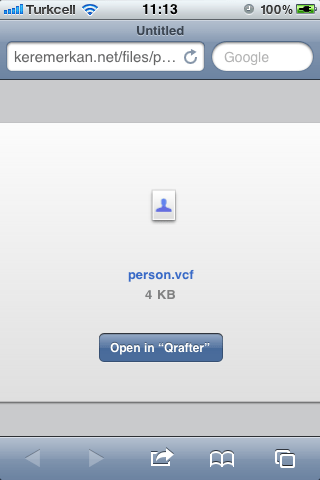
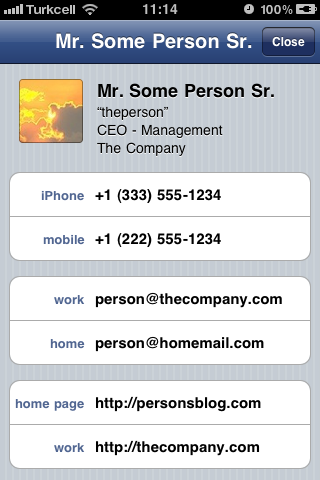
Qrafter is a free app, but saving a vCard opened this way will need the Pro Pack in app purchase which is $2.99. For a cheaper alternative, please read this post.
You can download Qrafter by clicking the badge below:

Hi,
I grabbed the app to try to handle a vcf file of all my contacts from my old Sony Experia Mini. For some reason I needed a work around because the Sony software couldn’t see the saved vcf file to transfer it and yet I could see it in Windows.
Anyway, I followed the steps above to transfer all my contacts from the vcf file but it has only transferred the first contact. Can Qrafter Pro not therefore handle multiple contacts on a vcf?
Many thanks,
Neal
Hi Neal,
Unfortunately no, Qrafter Pro only gets the first vCard in a vcf. Please contact me via email and I’ll send you a promo code for vCard Getter which can handle multiple cards.
Cheers!
I have just published an alternative solution on my blog which describes how to attach the contact file (.vcf) as an attachment to a calendar file (.ics) which is handled by mobile safari
http://mobicontact.info/iphone/download-contact-from-web-page/
I purchased Qrafter for my iphone and it is a great product. Can I also purchase this to put on a personal computer (not mac)? Thanks for the great program.
Hi Carl,
No, Qrafter is currently available only on iOS.
Keremciğim, göğsüm kabardı. Benim 10 yıl önceki hayallerimi sen gerçekleştiriyorsun, çok çok tebrikler ve sevgiler, dayın. Bu bölümü yorum Qrafter’la ilgili gibi görünsün diye yazıyorum, bu cavurlar anlamaz nasıl olsa 🙂
Hahaha! Teşekkür ederim dayıcığım, yorumun beni çok mutlu etti 🙂
Does the Advanced Functionality Pack remove the ads in Qrafter?
No, it’s a low cost in-app purchase that gives Qrafter the ability to download vCards from the internet and other advanced functionalities that other QR Code readers don’t have. Ad Removal is another in-app purchase.
Ahh, i see the ‘Remove Ads’ feature in Qrafter now.
Thanks for your work on Qrafter, by the way. It’s an excellent app. I was using zxing’s Barcode Reader and AT&T’s Scanner apps, but Qrafter is consistently better at reading the QR codes and offering something useful to do with them. It consistently handles contact info, events, and locations better than other QR code readers i’ve tried.
Do you have a place to suggest features, or is the email on your About page the best way to submit feature requests? I have some suggestions, but i don’t want to be a bothersome nag.
Ah thank you! I am glad that you like Qrafter. 🙂
Yes, my e-mail is the best way to send your feedback. The main reason for Qrafter being free and ad supported is to have it used by many people. That way, I get much more feedback and I get to add exceptional features to it.
You can send me anything in your mind. Actually, v1.3 is ready for submitting to App Store, but I’d love to add more things to it before releasing it.
Hope you can review Qrafter on the App Store and join our Facebook page too! The Facebook page is also another way to submit feedback. It’s at http://www.facebook.com/Qrafter